
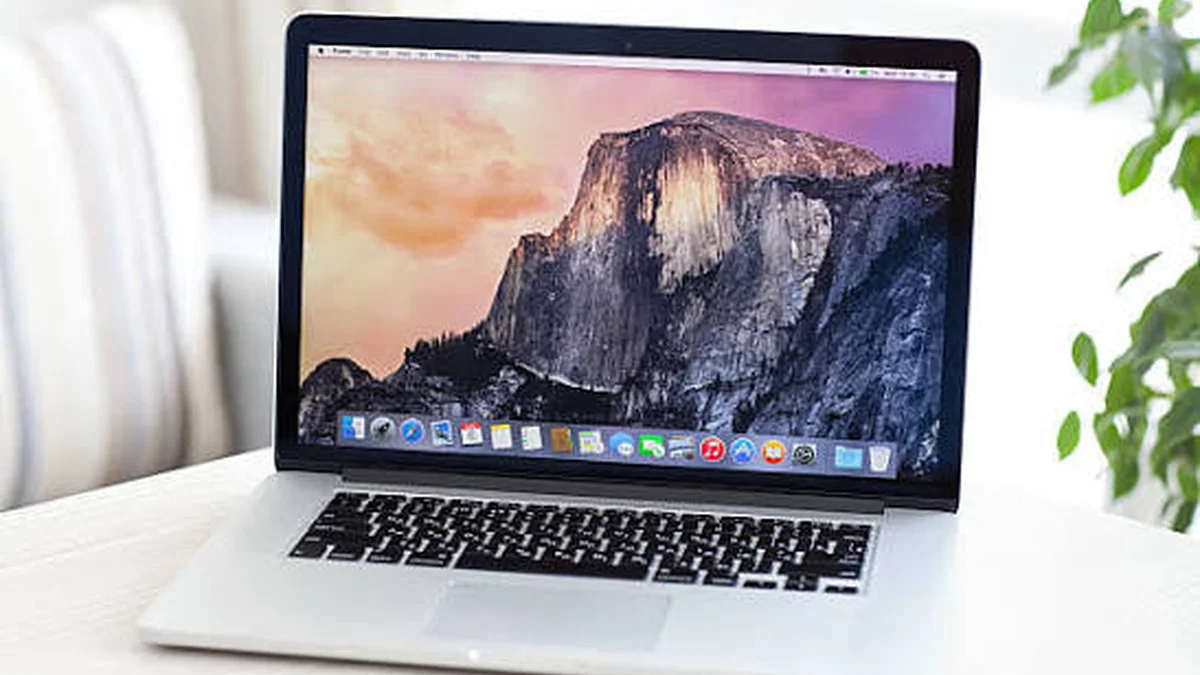
Your Mac says storage is almost full. You’ve already deleted a few apps you don’t recognize anymore. The number barely moved.
That’s not a glitch — it’s how old software actually behaves on macOS. Uninstalling an app rarely uninstalls all of it.
Quick answer: To free up space old software Mac, uninstall unused apps from the Applications folder, then manually clear their leftover caches, logs, and support files from your ~/Library folder — or use a dedicated uninstaller app that removes both in one step. Also check for old iOS backups and outdated macOS installers, which quietly take up several gigabytes each.
Why Old Software Takes Up More Space Than You Think
Unlike Windows, macOS doesn’t use a central registry to track what an app installs and where. Every app is free to scatter its own files across your system — caches to speed itself up, logs to record errors, preference files to remember your settings, sometimes entire background helper processes called launch agents or daemons that keep running quietly even after you’ve stopped opening the app.
Drag that app to the Trash, and macOS removes the visible .app file. Everything else — the caches, the logs, the support files buried in your Library folder — stays right where it was. Multiply that by every app you’ve installed and abandoned over the years, and it adds up to gigabytes of dead weight you can’t see in the Applications folder.
I’ve cleaned up Macs where a single long-abandoned video editor left behind close to 3GB of cache and render files, months after the app itself was gone. That’s not unusual — it’s the norm.
Step 1 — Find Out What’s Actually Using Your Storage
Before deleting anything, get an honest picture of where your space is going. On any current version of macOS:
- Click the Apple menu, then System Settings
- Select General, then Storage
- Wait for the colored bar to populate — this shows storage by category
- Click the i icon next to any category for a breakdown, or select Manage for deeper controls
Focus on the biggest categories first. A few gigabytes trimmed from “System Data” or “Applications” will always beat scrolling through Downloads looking for stray PDFs.
One catch worth knowing: the colored bar in Storage Management doesn’t always add up perfectly against your total drive capacity. Some system files and snapshots aren’t broken out cleanly, so treat the numbers as a strong guide rather than a perfect audit.
Quick takeaway: Don’t start deleting blind. Five minutes in Storage Management tells you whether your problem is old apps, photos, backups, or something else entirely — and that changes what you should do next.
Step 2 — Uninstall Old Apps the Right Way
For apps downloaded outside the Mac App Store, the standard method still works fine as a starting point:
- Open Finder and go to Applications
- Quit the app if it’s running
- Drag it to the Trash
- Empty the Trash
Apps installed through the Mac App Store can be deleted the same way, or by holding down an app icon in Launchpad until it jiggles, then clicking the delete option.
This step removes the app itself, but — and this is the part most guides gloss over — it does not remove what the app installed elsewhere on your Mac. That’s the next step, and it’s the one that actually recovers meaningful space from software you stopped using months or years ago.
Step 3 — Track Down and Delete Leftover Files
App leftovers hide mostly in your personal Library folder, which macOS keeps hidden by default. To reveal it:
- Open Finder
- From the menu bar, choose Go > Go to Folder
- Type
~/Libraryand press Return
The ~/Library folders worth checking
Once you’re in, these are the folders where old software tends to leave the most behind:
| Folder | What it holds |
|---|---|
~/Library/Caches | Temporary data apps store to load faster |
~/Library/Logs | Error and activity logs, sometimes surprisingly large |
~/Library/Application Support | App settings, plugins, and saved data |
~/Library/Containers | Sandboxed app data, common for Mac App Store apps |
~/Library/LaunchAgents | Background processes tied to specific apps |
~/Library/Saved Application State | Window/session states apps restore on relaunch |
In each folder, search for the name of the app you removed and delete anything clearly tied to it. Then empty the Trash again — deleting a file only frees space once the Trash is emptied.
What not to touch
This is where I’d slow down if I were you. Not everything in Library is safe to remove:
- Never delete folders you don’t recognize by name — if it doesn’t match an app you uninstalled, leave it
- Skip anything inside
/System/Libraryentirely; that’s core macOS, not app leftovers - If two apps share a similar name (a free vs. pro version, for example), double-check before deleting shared support files
- Back up anything important first if you’re not confident — a quick Time Machine snapshot costs nothing and saves headaches
Removing the wrong system file won’t destroy your Mac, but it can cause a specific app or feature to misbehave until reinstalled, so a little caution here goes a long way.
Step 4 — Clear the Other Storage Hogs Hiding Nearby
Old software rarely travels alone. A few adjacent culprits are worth checking in the same session.
Old iOS/iPadOS backups
If you’ve ever backed up an iPhone or iPad to your Mac, those backups are full device copies — messages, app data, photos — and they don’t delete themselves when you get a new phone.
- Apple menu > About This Mac > More Info
- Open the Storage tab, then Storage Settings or Manage
- Select iOS Files from the sidebar
- Delete backups you no longer need
Old macOS installers and update files
Downloaded macOS installers and leftover update packages can sit around taking up several gigabytes after they’ve already done their job. Check System Settings > General > Software Update to confirm nothing is pending, then look in your Downloads folder for old installer files you can safely remove.
Duplicate files
Years of software use tends to generate duplicate documents, exports, and downloads — the same file saved twice, screenshots copied into multiple folders, that sort of thing. macOS doesn’t have a built-in duplicate finder, so this is one area where a dedicated tool genuinely saves time over a manual folder-by-folder search.
Quick takeaway: Old apps, old backups, and old installers are three separate problems that all look the same on your storage bar. Clearing just one and assuming you’re done is the most common reason people delete apps and still see barely any space recovered.
Should You Use a Mac Cleaner App Instead of Doing It Manually?
Manual cleanup works, and it costs nothing but time. But if you’ve got years of accumulated software on your Mac, going through the Library folder app-by-app gets tedious fast — and it’s easy to miss things, especially launch agents and containers that don’t obviously match the app’s name.
Dedicated uninstaller and cleaner apps — CleanMyMac, App Cleaner & Uninstaller, and similar tools — scan your Mac for an app’s full footprint before you delete it, then remove the app and its associated files together. Most also include broader cleanup features: system junk removal, duplicate detection, login item management, and large/old file scanners.
The honest trade-off:
- Pros: Faster, catches leftovers you’d likely miss manually, usually includes ongoing maintenance tools, notarized options are safe to run
- Cons: Most useful cleaner apps are subscription-based, some overlap with what macOS’s built-in Storage Management already does for free, and a few less scrupulous tools flag normal files as “junk” to look more useful than they are
If you’re cleaning up one or two old apps, do it manually — it’s genuinely not hard once you know the folders to check. If you’re clearing years of accumulated software across an older Mac, a reputable, Apple-notarized cleaner app will save real time and probably catch more space than a manual pass would.
Keep Your Mac From Filling Up Again
Freeing up space once is easy. Keeping it free is the part people skip. A few habits that actually stick:
- Uninstall apps as soon as you know you’re done with them, not months later
- Check Login Items & Extensions in System Settings periodically and remove entries for apps you no longer use
- Aim to keep at least 15–20% of your drive free — macOS runs noticeably better with headroom for swap space and temporary files
- Empty the Trash on a schedule instead of letting it silently hold gigabytes
- Review Storage Management every few months instead of waiting for the “storage almost full” warning
None of this needs to be a big production. Five minutes every couple of months beats a two-hour cleanup session once a year.
Final Thoughts
Old software is one of the sneakiest ways a Mac’s storage fills up, precisely because deleting the app feels like it should be enough. It isn’t — the caches, logs, and support files left behind are often bigger than the app itself.
Work through Storage Management to see where your space is actually going, uninstall what you don’t use, clear out the Library leftovers it left behind, and check the nearby culprits — old backups, old installers, duplicates. If that sounds like more manual digging than you want to do regularly, a notarized cleaner app can handle it in a fraction of the time. Either way, the space is there to reclaim.
IF THIS HELPED, CHECK OUT MORE GUIDES FOR MORE STEP-BY-STEP GUIDES.
FAQ Free Up Space Old Software Mac
Does deleting old apps free up space on a Mac?
Partially. Deleting the app itself removes the main program, but caches, logs, and support files it created usually stay behind in your Library folder unless you remove them separately or use an uninstaller that clears both at once.
How do I find hidden files taking up space on my Mac?
Open Finder, choose Go > Go to Folder, and type ~/Library to reveal your personal library folder. Check Caches, Logs, and Application Support for files tied to apps you’ve already deleted.
Is it safe to delete files in the Library folder on a Mac?
Yes, as long as you only remove files clearly tied to apps you’ve uninstalled. Avoid anything inside /System/Library, and skip files you don’t recognize — those support macOS itself, not individual apps.
Why is my Mac storage still full after deleting apps?
Usually because leftover app files, old iOS backups, or outdated macOS installers are still on the drive. Deleting the app is only the first step; the space those extras use doesn’t clear on its own.
What happens if I just drag an app to the Trash on a Mac?
The visible application is removed, but any caches, preferences, logs, or background processes it created remain on your system unless deleted separately.
How much free space should a Mac always have?
Aim to keep roughly 15–20% of your drive free. macOS uses free space for swap files and temporary data, and performance can noticeably dip once a drive gets close to full.
Can I recover space from old macOS updates?
Yes. Once an update finishes installing, the downloaded installer file is no longer needed and can be deleted from your Downloads folder if it’s still there.
Do I need a third-party uninstaller for a Mac?
Not strictly — manual cleanup works fine for a handful of apps. A dedicated uninstaller saves time if you’re clearing years of accumulated software, since it finds leftover files automatically instead of you searching folder by folder.
