
Productivity apps are supposed to save time. Yet choosing, configuring, and constantly switching between them can easily become another form of procrastination.
The useful question isn’t “Which app has the most features?” It is: What part of your workflow is currently slowing you down?
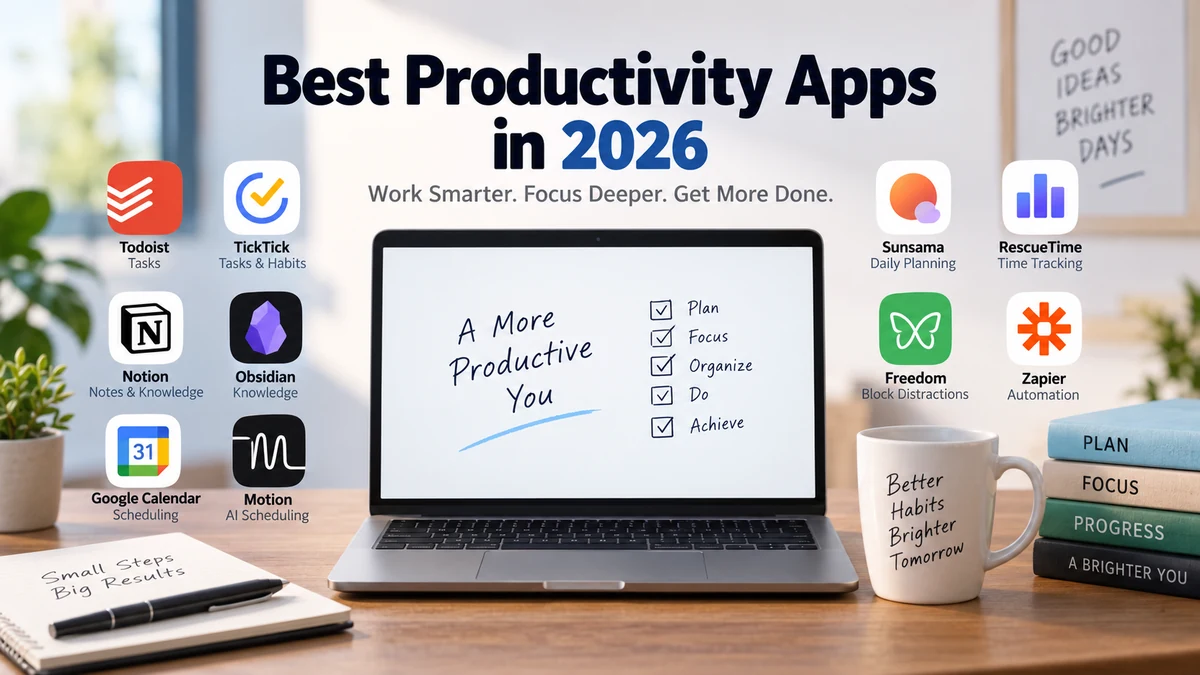
The best productivity apps in 2026 include Todoist and TickTick for task management, Notion and Obsidian for notes and knowledge, Google Calendar for scheduling, Motion and Sunsama for daily planning, RescueTime and Freedom for focus, and Zapier for automation. The right choice depends on the specific productivity problem you need to solve.
Current productivity guides increasingly reach the same conclusion: there isn’t one universal winner. Different tools excel at task capture, project management, knowledge management, time blocking, focus, communication, and automation.
Best Productivity Apps at a Glance
Before installing anything, identify the job you need the software to perform.
| App | Best for | Main strength | Main limitation |
|---|---|---|---|
| Todoist | Task management | Fast, clean task capture | Limited as a full knowledge system |
| TickTick | Tasks and habits | Broad feature set | Interface can feel busy |
| Notion | All-in-one workspace | Highly flexible | Requires setup |
| Obsidian | Personal knowledge | Local-first linked notes | Steeper learning curve |
| Google Calendar | Time blocking | Simple scheduling | Not a complete task manager |
| Motion | AI scheduling | Automatic calendar planning | More complexity than basic planners |
| Sunsama | Daily planning | Intentional workflow | Requires daily participation |
| Akiflow | Time blocking | Tasks plus calendar | Best for planning-heavy workflows |
| Asana | Team projects | Structured project management | Excessive for simple personal tasks |
| ClickUp | Complex workflows | Huge range of features | Can feel overwhelming |
| Microsoft 365 | Office productivity | Integrated office ecosystem | More suite than personal planner |
| RescueTime | Time tracking | Automatic activity insights | Doesn’t replace a task system |
| Freedom | Distraction blocking | Blocks digital distractions | Doesn’t organize work |
| Forest | Focus sessions | Simple motivational approach | Limited workflow management |
| Zapier | Automation | Connects apps and workflows | Automation requires initial setup |
A useful productivity system might contain only two or three of these. Installing ten apps rarely makes someone ten times more productive.
How to Choose the best productivity apps
The biggest mistake people make is choosing software based on feature lists instead of workflow problems.
Think about where your work actually breaks down.
If you regularly forget assignments, errands, deadlines, or follow-ups, start with a task manager. If your tasks are clear but your calendar becomes overloaded, investigate a daily planner or time-blocking app. If information disappears across documents and browser tabs, you probably need a notes or knowledge-management tool.
For teams, the problem may instead be ownership: nobody knows who is doing what or when a project is due. That’s where project-management platforms become valuable.
A practical selection process looks like this:
- Identify your biggest recurring productivity problem.
- Choose one app designed primarily for that problem.
- Import only active tasks or essential information.
- Use the tool consistently for at least a normal working week.
- Check whether it reduces effort or merely moves work into another interface.
- Add another tool only when a specific gap remains.
This “problem first” approach is also reflected in recent productivity-app comparisons, which increasingly categorize tools by jobs such as task management, project planning, notes, knowledge management, focus, and time management rather than declaring one app universally superior.
What features actually matter?
A productivity app should reduce friction.
Look for quick task capture, reliable reminders, useful search, calendar integration, synchronization across your devices, recurring tasks where appropriate, and an interface you can understand without constantly consulting documentation.
Artificial intelligence is becoming increasingly common, particularly for scheduling, summarization, search, and workflow automation. But AI isn’t automatically a productivity advantage. If you spend more time correcting an automated system than doing the work yourself, the feature isn’t helping.
Quick Takeaway: Choose the smallest system capable of solving your actual problem. Complexity has a maintenance cost.
Best Productivity Apps for Task Management
Task managers remain the foundation of many personal productivity systems because they answer a simple question: What do I need to do next?
1. Todoist — Best for straightforward task management
Todoist is one of the strongest choices for people who want to capture tasks quickly without building an elaborate productivity system.
You can organize work into projects, add due dates, create recurring tasks, assign priorities, and break larger jobs into manageable steps. It works particularly well when your tasks span several areas—work, study, household responsibilities, appointments, and personal projects.
Its biggest advantage is restraint. You can build a sophisticated setup, but you don’t have to.
Todoist is therefore particularly useful for:
- students managing assignments and deadlines;
- professionals tracking follow-ups;
- freelancers balancing several clients;
- people moving from paper lists to digital task management.
Recent productivity comparisons continue to place Todoist among the leading dedicated task managers.
The downside is equally clear: Todoist is primarily about actions. If you want an interconnected research library, complex database, or highly visual project workspace, another application may complement it better.
2. TickTick — Best task-and-habit combination
TickTick goes further than the traditional to-do list by combining tasks with calendar views, habits, reminders, and focus-oriented features.
That makes it appealing to people who would otherwise install separate apps for their daily tasks and recurring routines.
For example, you might use TickTick to manage a client deadline while simultaneously tracking exercise, reading, or another recurring habit.
This broader design is both its strength and its weakness. People who enjoy having many productivity functions available in one interface may love it. Someone looking for the cleanest possible to-do list may prefer Todoist.
3. Microsoft To Do — Best simple free task manager
Microsoft To Do is worth considering when your needs are basic: lists, reminders, due dates, recurring tasks, and straightforward organization.
It makes particular sense for people already working within Microsoft’s ecosystem.
You don’t get the depth of a large project-management platform, but that can be an advantage. A grocery list doesn’t need a project dashboard, and a five-item workday doesn’t require sophisticated workflow automation.
For basic personal organization, simplicity often beats power.
Best Productivity Apps for Notes and Knowledge Management
Task managers tell you what to do. Knowledge-management apps help you preserve the information required to do it.
This distinction matters.
Trying to force meeting notes, research, reference material, project documentation, and dozens of attachments into a task manager usually creates a mess.
4. Notion — Best flexible all-in-one workspace
Notion sits somewhere between a note-taking app, database, wiki, document editor, and project workspace.
A student might build a course dashboard containing lecture notes, assignments, reading lists, and exam dates. A freelancer could maintain client documentation and content calendars. A small team might use the same platform as an internal knowledge base.
This flexibility explains why Notion appears so frequently in productivity comparisons. Recent 2026 roundups continue to position it prominently for knowledge work and customizable workspaces.
But flexibility creates a common trap: productivity-system building can replace productive work.
You don’t need an elaborate dashboard containing 17 databases to remember four tasks.
Start with pages and simple databases. Build additional structure only after repeated use proves you need it.
5. Obsidian — Best for connected personal knowledge
Obsidian takes a different approach.
It is especially attractive to writers, researchers, students, developers, and other knowledge workers who want to create relationships between notes rather than simply storing documents in folders.
Its local-first approach is another significant distinction. Recent productivity comparisons specifically highlight Obsidian as a strong local-first knowledge-base option.
Imagine researching artificial intelligence. Instead of creating one enormous document, you could maintain separate notes for machine learning, large language models, neural networks, individual papers, and important concepts, then link related ideas.
Over time, those relationships become valuable.
The tradeoff is learning curve. Obsidian rewards people willing to develop a note-taking practice; it isn’t necessarily the fastest choice for someone who just wants a place for a shopping list.
Best Productivity Apps for Scheduling and Time Blocking
A to-do list tells you what needs doing.
A calendar answers the harder question: When will you actually do it?
That’s why time blocking has become such a major part of modern productivity software.
6. Google Calendar — Best simple time-blocking foundation
Google Calendar remains one of the easiest ways to turn intentions into scheduled time.
Suppose your task list says:
- finish presentation;
- reply to clients;
- exercise;
- research next project.
Those tasks can sit untouched all day.
Putting “Presentation — 9:00–10:30” on a calendar forces you to consider the real cost of completing it.
Google Calendar is particularly useful because you don’t have to rebuild your entire productivity system. Keep tasks elsewhere if you prefer and use the calendar simply to reserve time.
7. Motion — Best for AI-powered scheduling
Motion represents the increasingly popular AI scheduling category.
Instead of manually deciding where every task belongs, scheduling software can use deadlines, priorities, availability, and calendar constraints to help arrange work.
That becomes useful when your schedule changes frequently.
A traditional time-blocking system can become frustrating if a morning meeting moves, an urgent task appears, and your carefully planned afternoon suddenly collapses. Automated scheduling aims to reduce the manual reshuffling.
Recent comparisons consistently distinguish Motion for automatic or AI-driven calendar scheduling.
The tradeoff is control. Some people love having software continuously adjust their plan. Others prefer deciding exactly where every task goes.
8. Sunsama — Best for intentional daily planning
Sunsama takes a calmer approach.
Rather than trying to automate every decision, it emphasizes deliberate daily planning. You decide what deserves attention, estimate the required time, and build a realistic day around those commitments.
That sounds simple, but it addresses a common productivity failure: treating a task list as if every item can be completed today.
If you have nine hours of work on a six-hour calendar, no productivity technique will fix the mathematics.
Sunsama’s planning philosophy makes capacity visible. Current productivity comparisons frequently highlight it for daily planning and structured shutdown routines.
9. Akiflow — Best for task-to-calendar workflows
Akiflow is designed around bringing tasks into a planning environment and turning them into scheduled work.
It is particularly useful when tasks originate in several places but execution happens through your calendar.
Time-boxing tools such as Akiflow, Sunsama, Motion, Morgen, and Google Calendar solve related problems in different ways: some emphasize deliberate planning, while others emphasize automation or calendar consolidation.
The lesson isn’t that one planning philosophy wins. It is that your planner should match the way your schedule changes.
Quick Takeaway: If your task list keeps growing despite careful organization, the missing tool may not be another task manager. Try assigning actual calendar time to important work.
Best Productivity Apps for Teams and Project Management
Personal productivity software usually revolves around “What should I do?”
Team productivity adds three more questions:
Who owns this? What depends on it? Who needs to know when it changes?
That’s where project-management software becomes more valuable than a personal to-do list.
10. Asana — Best for structured team projects
Asana helps teams organize projects into tasks, responsibilities, deadlines, and workflows.
Its real benefit appears when work crosses between people.
Consider a website launch. Writing may need to finish before editing. Design depends on approved copy. Development depends on design. Testing follows implementation.
A shared project system makes those dependencies visible.
For a solo user with five daily tasks, Asana can be more structure than necessary. For a team coordinating multiple projects, that structure becomes the point.
11. ClickUp — Best for highly configurable team workflows
ClickUp is aimed at users who want considerable control over how projects and workflows are structured.
It regularly appears in productivity comparisons as a feature-rich project-management and workspace option.
The benefit is customization. The cost is complexity.
A practical rule with ClickUp—or any large project-management system—is to configure only what your team currently needs. Every custom field, status, dashboard, and automation eventually has to be understood and maintained.
12. Microsoft 365 — Best productivity suite for office work
Microsoft 365 belongs in a slightly different category.
Rather than solving one narrow productivity problem, it provides an interconnected office environment covering documents, spreadsheets, presentations, email, storage, meetings, and collaboration.
TechRadar’s productivity-tool coverage continues to identify Microsoft 365 as a leading comprehensive office productivity suite, emphasizing how its applications work together.
For people whose work revolves around documents, spreadsheets, presentations, email, and shared files, an integrated suite can matter more than having the most sophisticated standalone task manager.
Best Productivity Apps for Focus and Distraction Blocking
Sometimes organization isn’t the problem.
You know exactly what you should be doing. You simply keep opening something else.
Focus tools approach productivity from this behavioral angle.
13. RescueTime — Best for understanding where your time goes
RescueTime helps reveal how computer time is actually being spent.
That distinction between perceived and actual behavior can be uncomfortable—and useful.
You might feel that email consumes most of your day, only to discover that frequent short visits to social media, news sites, messaging apps, and unrelated browser tabs create the larger interruption pattern.
RescueTime has long been used for activity tracking and distraction awareness, including categorizing digital activity and helping users understand browsing patterns.
Use time-tracking information diagnostically rather than obsessively. The goal isn’t to account for every minute. It is to identify recurring patterns worth changing.
14. Freedom — Best for blocking digital distractions
Freedom attacks the problem more directly: remove access to distracting websites and apps during periods when you want to concentrate.
This works particularly well when willpower repeatedly fails.
Instead of spending mental energy deciding not to open a distracting website 20 times, you make the decision once before the focus session begins.
15. Forest — Best for simple focus sessions
Forest turns focused work into a lightweight visual commitment.
It isn’t a full task-management or project-planning system, and that’s precisely why some people find it useful. You begin a focus period and have a simple reason not to interrupt it unnecessarily.
Forest is particularly suitable for study sessions, reading, writing, and other work where the main challenge is staying with one activity.
For students asking which productivity app is best for studying, a combination can work better than one giant platform: a task manager for assignments, a calendar for exam preparation, a notes tool for course material, and a focus timer for study sessions.
Automation: The Productivity Category People Often Forget
Most productivity discussions focus on organizing work.
Automation asks a more valuable question:
Does this work need to be done manually at all?
Zapier — Best for connecting repetitive workflows
Zapier connects applications so information and actions can move between them automatically.
A simple workflow might take information submitted through a form, add it to another system, notify the relevant person, and create a follow-up task.
The important idea isn’t any individual automation. It’s eliminating repeated administrative steps.
Zapier’s 2026 productivity guide describes automation as a way to connect existing productivity tools and move information or actions between apps rather than manually maintaining every part of the workflow.
Automation becomes most valuable when a task is:
- repetitive;
- predictable;
- rules-based;
- frequent enough to consume meaningful time;
- performed across multiple applications.
Don’t automate a process you barely understand. First make the manual workflow reliable; then automate stable steps.
Best Productivity Apps for Students
Students usually need four capabilities: assignments, notes, scheduling, and focused study.
A simple stack could therefore be:
Todoist or TickTick → Google Calendar → Notion or Obsidian → Forest
The task manager stores deadlines and next actions.
The calendar determines when studying happens.
The note-taking system stores course material.
The focus tool protects the study session.
The common mistake is building an enormous Notion dashboard before the semester begins and then abandoning it three weeks later. Your system should require less effort than the academic work it organizes.
For most students, fast capture matters more than advanced customization.
Best Productivity Apps for Professionals
Professionals usually face a different problem: information arrives from everywhere.
Email produces tasks. Meetings produce commitments. Chat creates interruptions. Project-management platforms generate notifications. Calendars consume the remaining time.
For that environment, a useful productivity stack may contain:
- Todoist for personal next actions;
- Notion or Obsidian for reference information;
- Google Calendar, Sunsama, Motion, or Akiflow for scheduling;
- Asana or ClickUp for shared project ownership;
- RescueTime or Freedom for attention management;
- Zapier for repetitive cross-app processes.
The exact applications matter less than defining a clear role for each.
If the same task appears in your inbox, task manager, notes app, project-management platform, and calendar, you’ve created five sources of uncertainty instead of one productivity system.
Free vs. Paid Productivity Apps: When Should You Upgrade?
Free productivity apps are often enough for personal use.
A paid plan becomes easier to justify when a limitation repeatedly interferes with real work—for example, when you need advanced collaboration, larger automation capacity, sophisticated scheduling, additional integrations, or features used by an entire team.
Don’t upgrade because a premium dashboard looks useful.
Ask a harder question:
What recurring problem will this paid feature remove?
If you cannot name one, keep using the simpler version.
The same principle applies to switching applications. Migration has a cost. Rebuilding tags, projects, databases, templates, and habits in another platform can consume hours without improving your output.
Can Productivity Apps Actually Make You More Productive?
Yes—but only when they remove friction between intention and action.
A task manager helps when forgetting commitments is the problem.
A calendar helps when unrealistic planning is the problem.
A focus blocker helps when distraction is the problem.
Automation helps when repetitive manual work is the problem.
But software cannot decide that an unimportant task should be abandoned, make an impossible workload realistic, or compensate indefinitely for poor priorities.
This explains why experienced productivity reviewers increasingly reject the idea of one universally “best” app. Zapier explicitly emphasizes the personal nature of productivity, while other current comparisons recommend matching applications to specific jobs and workflow problems.
Watch for productivity-tool overload
There is a point where productivity software becomes counterproductive.
Warning signs include:
- repeatedly migrating between apps;
- maintaining duplicate task lists;
- spending more time designing dashboards than using them;
- constantly reorganizing tags and folders;
- testing new tools instead of completing existing work;
- checking multiple systems to determine what to do next.
If that sounds familiar, reduce the number of tools.
One task manager used consistently is more valuable than five sophisticated apps used occasionally.
How to Build a Simple Productivity System That Lasts
A durable system doesn’t need to be complicated.
Step 1: Create one trusted place for tasks
Choose Todoist, TickTick, Microsoft To Do, or another task manager and capture actionable commitments there.
Don’t rely on remembering them.
Step 2: Separate tasks from reference material
Keep long notes, research, documentation, and resources in a tool such as Notion or Obsidian.
A note is information. A task is an action.
Confusing the two makes both harder to find.
Step 3: Put important work on your calendar
A deadline tells you when something must be finished.
A time block tells you when you plan to work on it.
Those aren’t the same thing.
Step 4: Protect focused work
Use Freedom, Forest, device-level focus controls, or another distraction-reduction method when concentration is the bottleneck.
Step 5: Automate repeated administration
After your workflow becomes stable, identify repetitive transfers of information that can be handled automatically.
Step 6: Review the system weekly
Remove stale tasks, update priorities, check upcoming deadlines, and delete organizational structures you no longer use.
The review is what keeps a productivity system trustworthy.
What Is the Best Productivity App Overall?
There is no single winner for every person, but there are clear starting points.
Todoist is one of the safest choices if you primarily need task management. TickTick suits people who want tasks, habits, and more planning features together. Notion is stronger when you need a customizable workspace, while Obsidian excels at connected personal knowledge.
If your biggest challenge is deciding when to work, start with Google Calendar or consider planning-focused tools such as Sunsama, Motion, or Akiflow. Teams managing complex shared work should look toward Asana or ClickUp.
For distraction problems, RescueTime, Freedom, and Forest address attention rather than organization. And when the problem is repetitive digital work, Zapier represents an entirely different productivity strategy: eliminating manual steps rather than organizing them.
The most useful lesson from the best productivity apps isn’t that everyone should install the same software. It’s that productivity problems are different.
Choose one tool for your biggest bottleneck, use it consistently, and measure whether your work becomes easier to capture, plan, find, and finish. If it does, keep it. If maintaining the app becomes another job, simplify your system.
