
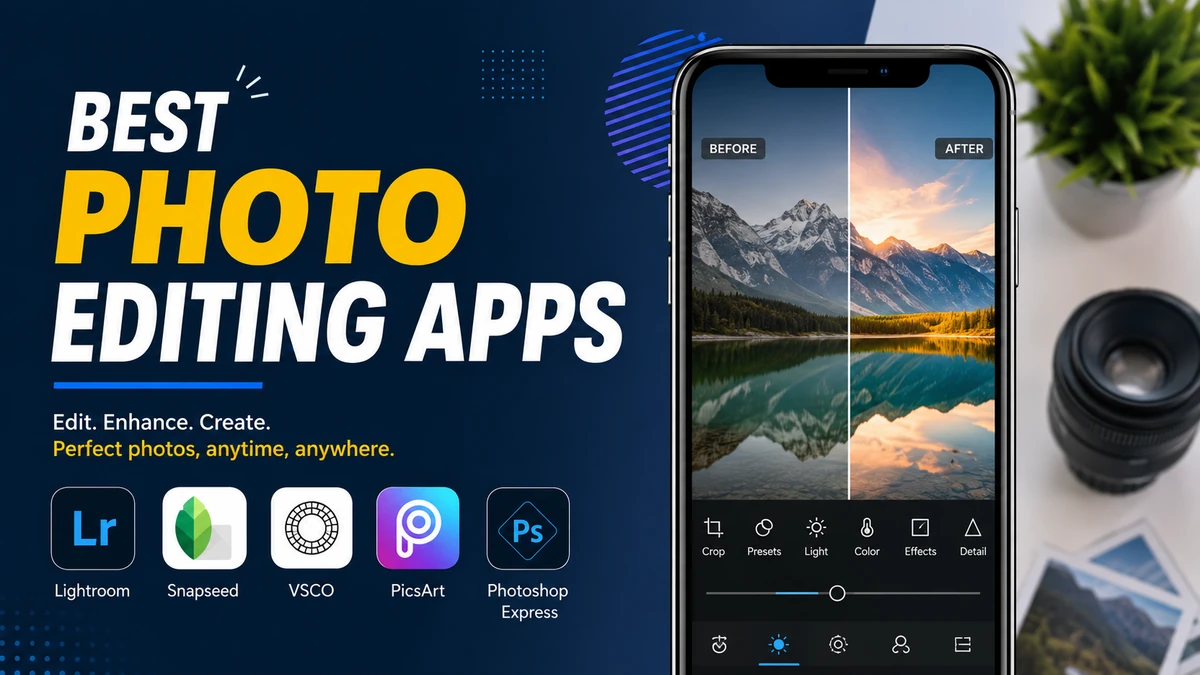
A good smartphone camera can capture an impressive image, but the edit often determines whether that photo feels polished or ordinary. Exposure correction, color grading, object removal, RAW processing, sharpening, and selective adjustments can now be handled directly on a phone.
The challenge is choosing the right editor. Some apps focus on professional photography, others specialize in film-style filters or AI cleanup, and several excellent options cost nothing.
The best photo editing apps in 2026 include Adobe Lightroom for advanced editing, Snapseed for powerful free tools, VSCO for film-inspired presets, Google Photos and Apple Photos for quick everyday adjustments, Photomator for Apple users, and Canva or Picsart for creative social-media edits. The right choice depends mainly on how deeply you want to edit.
Best Photo Editing Apps at a Glance
The easiest way to choose an editor is to match the app to the type of photography you actually do rather than downloading whichever app has the longest feature list.
| Photo editing app | Best for | Platforms | Free option | RAW editing | Main strength |
|---|---|---|---|---|---|
| Adobe Lightroom | Serious photography | iOS, Android | Yes | Yes | Professional adjustments |
| Snapseed | Best free editor | iOS, Android | Yes | Yes | Powerful tools without subscription |
| VSCO | Filters and film looks | iOS, Android | Yes | Supported features vary | Presets and color styling |
| Google Photos | Everyday Android editing | Android, iOS | Yes | Limited workflow | Fast AI-assisted editing |
| Apple Photos | Everyday iPhone editing | iOS, iPadOS, macOS | Included | Apple formats supported | Built-in convenience |
| Photomator | Apple photography workflow | iPhone, iPad, Mac | Limited/paid | Yes | Apple ecosystem integration |
| Picsart | Creative edits | iOS, Android, web | Yes | Not its main focus | AI and social graphics |
| Canva | Photos inside designs | iOS, Android, web | Yes | Not its main focus | Templates and content creation |
There is no universal winner. Someone correcting a RAW landscape needs different tools from someone editing a selfie for Instagram or removing a distracting person from a holiday photo.
1. Adobe Lightroom: Best Photo Editing App for Serious Photography
Adobe Lightroom remains one of the strongest choices when image quality and precise control matter.
Its mobile editor goes well beyond simple brightness and saturation sliders. You can work with exposure, highlights, shadows, white balance, tone curves, color mixing, sharpening, noise reduction, lens corrections, presets, masking, healing tools, and RAW files.
Lightroom’s biggest advantage is that it gives mobile photographers a workflow that feels remarkably close to desktop editing.
Adobe says the mobile version includes most standard editing, capture, organization, and sharing functions for free. Premium plans add features including masking, healing, geometry corrections, batch editing, RAW editing, cloud synchronization, and other advanced capabilities.
What Lightroom does particularly well
Selective adjustments are one of its strongest features. Rather than increasing brightness across an entire photograph, you can brighten a subject while leaving the background untouched.
Masking becomes useful for:
- faces and people
- skies
- backgrounds
- individual objects
- specific tonal or color areas
Recent Lightroom releases have also expanded AI-assisted retouching. Adobe’s June 2026 mobile updates, for example, added AI-powered blemish detection to its Retouch workflow, while other recent releases expanded film-style presets and mobile editing features.
Lightroom is equally useful when you shoot RAW. RAW images retain substantially more capture data than finished JPEG files, giving you greater flexibility when recovering shadows, reducing highlights, correcting white balance, or adjusting colors.
Who should use Lightroom?
Choose Lightroom if you:
- shoot RAW or ProRAW images
- care about accurate color
- frequently adjust individual areas of photographs
- want consistent presets across many pictures
- edit on both mobile and desktop
- need cloud synchronization
Adobe currently lists its standalone Lightroom plan at $11.99 per month in the US with 1TB of cloud storage, though pricing can vary by location and subscription type.
Quick Takeaway: Lightroom is the strongest all-round option for photographers who want room to grow. Casual users may never need all of its features, but serious mobile photographers are unlikely to outgrow it quickly.
2. Snapseed: Best Free Photo Editing App
For people asking what is the best free photo editing app, Snapseed deserves particular attention.
Google’s Snapseed has long been popular because it combines serious editing tools with an unusually simple pricing model: the app itself is free.
Recent 2026 testing by multiple photography publications continues to place Snapseed among the leading free mobile editors. Amateur Photographer selected it as its overall mobile editing recommendation, highlighting its extensive toolset, RAW capabilities, and absence of both subscription fees and advertising.
Zapier similarly selected Snapseed as its best free powerful editor after testing more than 30 mobile photo editors.
Why Snapseed is still useful
Its tools cover far more than filters. You can adjust:
- exposure
- contrast
- saturation
- white balance
- curves
- perspective
- details and sharpening
- selective areas
- healing
- lens blur
- black-and-white processing
- RAW images
One standout feature is selective editing. Snapseed’s control-point system lets you modify targeted portions of an image without painstakingly painting a mask around every edge.
Snapseed 4.0 also refreshed the editing experience in 2026 and improved reusable editing workflows, including the ability to save combinations of adjustments as Looks.
Snapseed vs Lightroom
Snapseed is easier to recommend when cost is the priority.
Lightroom goes further with sophisticated masking, cloud management, cataloging, cross-device workflows, and professional RAW processing. Snapseed delivers many of the adjustments everyday photographers actually need without creating another monthly subscription.
That makes it particularly attractive for students, casual photographers, travel photography, and anyone learning how exposure and color correction work.
Quick Takeaway: If you want powerful editing without paying anything, start with Snapseed. Move to Lightroom only when you encounter a specific limitation that matters to your workflow.
3. VSCO: Best for Filters and Film-Inspired Photography
Many editors provide presets. VSCO built much of its reputation around them.
Its strength isn’t simply making photographs more saturated or dramatic. VSCO’s better presets are designed around recognizable photographic moods and analog-film aesthetics, making it useful when you want a collection of photographs to share a consistent visual character.
The free Starter tier currently provides 15 presets. VSCO Plus expands that collection to more than 200 presets along with advanced mobile photo and video tools. Its official US web pricing lists Plus at $29.99 when billed annually, while pricing can differ depending on billing method and region.
VSCO editing tools
Beyond presets, VSCO includes controls such as:
- exposure
- contrast
- saturation
- HSL adjustments
- fade
- grain
- borders
- cropping
- film-inspired effects
The company also supports more advanced creative workflows through higher membership tiers, including desktop editing and AI-related features.
Film grain is particularly useful when handled subtly. Digital noise and simulated film grain are not the same thing: noise is normally an unwanted image artifact, while controlled grain can deliberately soften a digitally perfect photograph and give it texture.
When VSCO makes more sense than Lightroom
Lightroom is stronger for technically precise corrections.
VSCO is usually more appealing when the creative look comes first.
Think:
- lifestyle photography
- street photography
- fashion
- travel
- portraits
- Instagram feeds
- consistent visual storytelling
You can build similar looks manually in Lightroom, but VSCO tends to get you there faster.
4. Google Photos: Best for Quick Android Photo Editing
Not every image needs a dedicated editing application.
If you use Android and want to improve a photograph immediately after capturing it, Google Photos may already provide everything you need.
Its editing interface includes familiar controls for brightness, contrast, highlights, shadows, saturation, warmth, tint, sharpening, noise reduction, and filters.
The more interesting difference in recent versions is Google’s increasing emphasis on AI-assisted editing.
Tools such as Magic Eraser can remove unwanted objects, while other AI features can simplify edits that previously required careful selection or cloning. Some capabilities and limits depend on the device, account, region, or Google One plan.
When should you use Google Photos?
It is particularly good for:
- family photos
- travel pictures
- quick exposure corrections
- removing small distractions
- automatic enhancements
- photos that do not require detailed RAW processing
The biggest advantage is convenience. Your images are already inside the library, so there is no separate import-edit-export workflow.
That matters more than it sounds. A technically superior editor isn’t particularly useful if opening it feels like too much work for the photo you’re editing.
5. Apple Photos: Best Built-In Photo Editor for iPhone
iPhone owners should not overlook the editor already inside Apple Photos.
For everyday photography, it can handle considerably more than cropping.
Available controls include exposure, highlights, shadows, brilliance, contrast, brightness, saturation, vibrance, warmth, tint, sharpness, definition, noise reduction, and vignette adjustments. You can also copy edits between photographs, making it easier to maintain a similar look across related images.
Recent Apple devices and software also incorporate intelligent cleanup functionality for removing distracting elements from suitable photographs.
Why Apple Photos is often enough
Its strongest feature is friction—or rather, the lack of it.
Take the picture.
Open it.
Tap Edit.
Adjust it.
Done.
There is no separate image library to manage and no need to learn a professional editing environment.
For someone who mainly photographs children, pets, food, holidays, events, or everyday life, those few seconds saved on every edit can matter more than dozens of advanced controls.
Apple Photos becomes limiting when you need sophisticated local adjustments, advanced color grading, extensive presets, or a dedicated professional RAW workflow.
For those jobs, Lightroom or Photomator makes more sense.
6. Photomator: Best Photo Editor for the Apple Ecosystem
Photomator occupies an interesting position between basic Apple Photos adjustments and a larger professional environment such as Lightroom.
It is available across Apple’s ecosystem and integrates closely with Apple Photos and iCloud.
Photomator supports nondestructive adjustments, masking, local edits, LUTs, selective color tools, and extensive RAW compatibility. Recent testing reports support for more than 750 RAW formats as well as Apple ProRAW.
Its machine-learning tools include features such as ML Enhance, Super Resolution, Auto Crop, and selection-assisted adjustments.
Why Photomator stands out
Apple users often want powerful editing without maintaining an entirely separate photography ecosystem.
Photomator fits that requirement well.
You can keep photographs within familiar Apple workflows while gaining more sophisticated controls than the standard Photos editor provides.
Its interface is also less intimidating than some full professional applications.
Photomator’s limitations
It isn’t meant to replace every part of Adobe Photoshop.
Photomator focuses primarily on photographic adjustments rather than heavy multilayer compositing, complex graphic design, or extensive pixel manipulation.
Some functionality also varies between Mac, iPhone, and iPad versions.
For editing actual photographs, however, that narrower focus can make the app easier to work with.
7. Picsart: Best for Creative and Social Photo Editing
Traditional photo editors try to improve a photograph.
Creative editors such as Picsart are often used to transform it.
That distinction matters.
Picsart is particularly useful when the finished image needs:
- text
- stickers
- backgrounds
- collages
- effects
- cutouts
- templates
- AI transformations
- social-media formatting
This makes it better suited to creators than photographers who are primarily concerned with technically accurate RAW processing.
When Picsart is the better choice
Imagine you have a portrait.
In Lightroom, you might correct skin tones, recover highlights, reduce noise, and refine the background.
In Picsart, you’re more likely to remove the background, add typography, insert graphic elements, apply an effect, or turn the portrait into content for a social platform.
Both are “photo editing,” but they solve different problems.
That is why selecting the best photo editing apps purely by the number of available tools can be misleading.
8. Canva: Best When Photos Are Part of a Design
Canva isn’t primarily a photography darkroom, but it has become an increasingly capable image-editing environment.
Its real advantage appears after the photograph itself has been corrected.
You can place that image into:
- Instagram posts
- YouTube thumbnails
- Pinterest graphics
- presentations
- posters
- invitations
- advertisements
- blog graphics
- website visuals
The editor combines straightforward image adjustments with templates, text, graphic elements, background tools, resizing, and AI-assisted creative functions.
Canva vs a traditional photo editor
Use Lightroom, Snapseed, or Photomator when the photograph itself is the final product.
Use Canva when the photograph is one component of a larger design.
This distinction saves a lot of frustration.
Trying to design a promotional graphic inside a photography-focused editor is unnecessarily difficult. Trying to perform advanced RAW color correction inside a template-based design platform is equally awkward.
Choose the software around the finished result.
Best Photo Editing Apps for iPhone
If you are specifically searching for the best photo editing apps for iPhone, your strongest options depend on editing depth.
For basic edits, start with Apple Photos.
For completely free advanced controls, use Snapseed.
For professional photography and RAW processing, Lightroom is the stronger choice.
For deep integration with Apple Photos and iCloud, Photomator deserves consideration.
For aesthetic presets, try VSCO.
For creative social graphics, use Canva or Picsart.
That means an iPhone owner doesn’t necessarily need one editor for everything.
A practical workflow might involve Apple Photos for 80% of everyday images and Lightroom or Photomator only when a photograph deserves more attention.
Best Photo Editing Apps for Android
Android users have an equally strong selection.
Google Photos is the natural starting point for quick adjustments because it integrates directly with the typical Android photo workflow.
Snapseed is the obvious step up when you want more control without paying.
Lightroom becomes useful when you begin working seriously with RAW files, masking, presets, and color grading.
VSCO is a strong alternative for film-inspired looks, while Picsart and Canva work well for social and graphic-based editing.
One difference worth remembering is that certain apps or professional features remain exclusive to Apple’s ecosystem. Photomator, for example, is focused on Apple devices.
Best AI Photo Editing Apps
Artificial intelligence has changed mobile editing, but the phrase AI photo editor now describes several completely different functions.
Some apps use AI to select subjects or skies.
Others use it to remove people.
Others generate missing pixels.
Still others let you describe a change with text.
These functions should not be treated as interchangeable.
Useful AI photo editing tools include
Object removal: Deletes distractions such as signs, people, wires, or background objects.
Automatic masking: Detects subjects, backgrounds, faces, skies, clothing, or other areas so they can be adjusted independently.
Generative editing: Creates replacement pixels when removing, expanding, or changing parts of an image.
Automatic enhancement: Analyzes exposure, contrast, tone, or color and applies suggested corrections.
AI retouching: Detects blemishes or portrait details and speeds up repetitive cleanup.
Super resolution or enhancement: Attempts to increase apparent detail or enlarge an image.
Lightroom increasingly combines traditional photography controls with AI assistance, while Google Photos emphasizes easy consumer-facing intelligent edits. Photomator uses machine learning for enhancement and selection workflows, and VSCO has expanded its AI-based creative tools.
The best AI feature is usually the one that removes repetitive work without taking away your control of the image.
What Features Should a Good Photo Editing App Have?
Before installing several applications, decide which features matter for your photography.
RAW support
RAW files retain more image information than standard JPEGs, giving photographers more latitude when adjusting exposure and color.
RAW editing is valuable for serious photography but unnecessary for someone who only edits screenshots or casual social pictures.
Nondestructive editing
Nondestructive editing preserves the original photograph while storing your adjustments separately.
This lets you return later and change an edit without permanently degrading the source file.
Selective adjustments and masking
Global exposure changes affect the whole frame.
Masking lets you brighten someone’s face, darken a sky, reduce saturation in the background, or sharpen one subject independently.
For more demanding edits, this is one of the most useful features an app can offer.
Curves and HSL controls
Tone curves give more control over brightness and contrast.
HSL—or hue, saturation, and luminance—controls allow specific color ranges to be adjusted independently.
For example, you can reduce the saturation of green foliage without making a person’s skin less colorful.
Presets and filters
Presets save groups of adjustments so they can be reused.
They are useful when editing several photographs from the same event or maintaining a consistent social-media aesthetic.
A good preset should provide a starting point rather than forcing every photograph into exactly the same look.
Healing and object removal
Healing tools remove small distractions.
Modern AI-assisted removal tools can tackle larger or more complex objects, although results still depend heavily on the background surrounding them.
Inspect edges carefully. AI cleanup can sometimes create repeated textures, distorted architecture, incorrect fingers, or other visual artifacts.
Batch editing
Batch tools allow similar settings to be applied to many photographs.
This matters most for:
- weddings
- events
- product photography
- travel collections
- professional shoots
- social-media content batches
Editing 100 photographs individually becomes tedious very quickly.
Free vs Paid Photo Editing Apps
A paid app is not automatically better for you.
Free editors already cover a remarkable amount of ground.
Snapseed is the clearest example. For exposure adjustments, color correction, selective editing, RAW processing, curves, healing, and creative effects, many users may never need anything beyond it.
Apple Photos and Google Photos are even easier choices for everyday editing because they’re already integrated into their respective ecosystems.
Paid software begins to make more sense when you need:
- cloud synchronization
- advanced masking
- sophisticated AI
- extensive premium presets
- desktop/mobile integration
- professional catalog management
- batch workflows
- larger creative ecosystems
A useful rule is to avoid subscribing simply because a feature exists.
Subscribe when you can identify a task you regularly perform that the free option makes difficult.
How to Edit Photos Without Making Them Look Overedited
The biggest photo-editing mistake usually isn’t choosing the wrong app. It’s using every available adjustment simply because it is there.
A natural edit normally begins with the fundamentals.
- Crop and straighten first. Fix composition before spending time on color.
- Correct exposure. Recover highlights and open shadows carefully rather than pushing every slider aggressively.
- Fix white balance. Look for skin, walls, clouds, or other objects you know should appear neutral.
- Adjust contrast gently. Deep blacks and bright whites can create impact, but excessive contrast destroys subtle detail.
- Refine color. Use vibrance or selective HSL controls before aggressively increasing global saturation.
- Apply local corrections. Brighten the subject or reduce distractions instead of forcing the whole photograph to compensate.
- Sharpen near the end. Oversharpening creates halos and unnatural texture.
- Check the image at normal size. A photograph that looks impressive at 300% zoom can appear harsh when viewed normally.
For portraits, be particularly careful with skin smoothing. Real skin contains pores, lines, texture, and tonal variation. Removing all of them usually makes a portrait less convincing rather than more professional.
Quick Takeaway: The best edits guide the viewer toward what matters in the photograph. They rarely announce how much editing was done.
Which Photo Editing App Is Best for Beginners?
Start with the simplest application capable of producing the result you want.
For basic phone photography, Apple Photos and Google Photos have the gentlest learning curve.
Snapseed is a good next step because it introduces curves, selective edits, white balance, healing, and other serious concepts without requiring payment.
Lightroom is worth learning when you begin asking questions such as:
- How do I edit RAW photos?
- How can I adjust only the sky?
- How do I save my own presets?
- How can I synchronize edits with my computer?
- How do photographers achieve consistent color?
Learning one capable editor deeply is generally more valuable than knowing where 10 different apps hide their filters.
Which Photo Editing App Is Best for Instagram?
There are two ways to interpret this question.
If you want to improve the photograph itself, Lightroom and VSCO are excellent choices. Lightroom offers finer tonal and color control, while VSCO makes consistent stylized looks faster to create.
If you need to turn that photograph into an Instagram post containing typography, graphics, templates, or other design elements, Canva or Picsart will usually be more convenient.
For a consistent feed, focus less on using the same filter and more on keeping similar:
- white balance
- contrast
- saturation
- skin tones
- highlight treatment
- shadow depth
A preset can help, but lighting varies between photographs, so some manual correction is almost always necessary.
Can Mobile Photo Editing Replace Photoshop?
For many photographers, yes.
For every Photoshop workflow, no.
Modern mobile editors can comfortably handle tasks that once required desktop software, including RAW development, curves, HSL color correction, local masking, gradients, blemish correction, selective sharpening, noise reduction, presets, object removal, and sophisticated tonal adjustments. PCMag’s 2026 mobile-editor coverage similarly notes that capabilities such as masking, HSL corrections, gradients, overlays, and tone curves are no longer limited to desktop programs.
Desktop software remains stronger for work involving:
- intricate multilayer composites
- extremely precise selections
- large professional files
- advanced retouching
- specialized printing
- complex typography
- plugin-heavy workflows
- pixel-level manipulation
- multi-monitor color-managed environments
The distinction is becoming less about whether phones can edit professionally and more about which interface is practical for a particular project.
How to Choose the Best Photo Editing App for You
Ignore the idea that one application has to win every category.
Instead, think about your most common edit.
If you usually take a picture and want it brighter within 20 seconds, Apple Photos or Google Photos is probably enough.
If you want a completely free editor with substantially greater control, Snapseed is difficult to beat.
If you shoot RAW, develop your own color style, use masks, or move between mobile and desktop, Lightroom is a better long-term system.
If the visual mood matters more than technical complexity, VSCO’s film-inspired presets remain compelling.
If you use Apple devices and want a deeper editing environment that fits naturally into the Apple ecosystem, Photomator is one of the most interesting alternatives.
And if photographs are primarily ingredients for social posts, posters, thumbnails, collages, or branded designs, Picsart and Canva address that job more directly than photography-focused editors.
The best photo editing apps aren’t necessarily the applications with the most AI tools, presets, or sliders. They are the ones that let you reach the image you had in mind with the least unnecessary friction.
For most people, the smartest starting point is simple: use the built-in editor already on your phone, try Snapseed if you need more control, and move to Lightroom or another specialist editor only when your photography begins demanding capabilities those tools cannot provide.
