
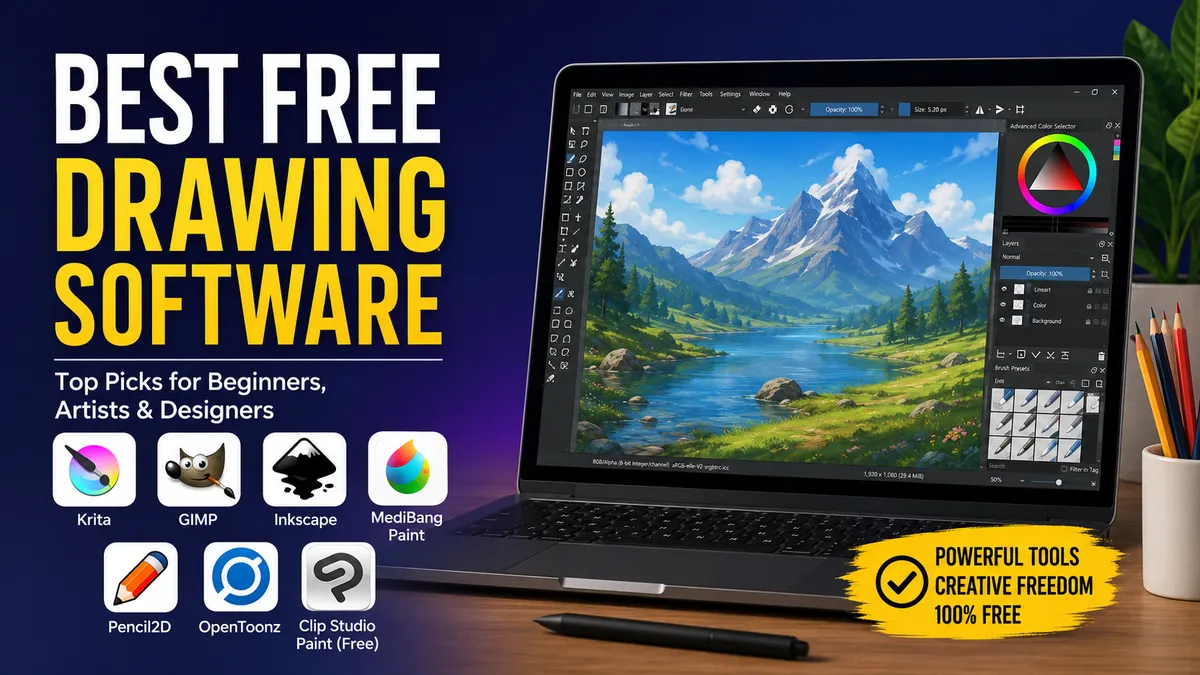
You no longer need an expensive creative subscription to make polished digital art. Free drawing programs now cover everything from quick sketches and manga pages to professional illustration, vector graphics, photo-based artwork, and 2D animation.
The harder part is choosing the right one. A program that feels excellent for painting may be frustrating for logo design, while a powerful image editor can feel unnecessarily complicated when all you want is a clean canvas and responsive brushes.
The best free drawing software for most people is Krita because it combines a strong brush engine, layers, masks, drawing assistants, PSD support, and animation tools without a subscription. Inkscape is better for vector illustration, GIMP excels when drawing overlaps with image editing, while MediBang Paint and FireAlpaca are strong alternatives for comics and lightweight workflows.
Here is how the leading free options compare in 2026 and, more importantly, which one makes sense for the type of art you actually want to create.
best free drawing software at a glance
There isn’t one program that wins every category. Raster painting, vector illustration, manga production, photo manipulation, and animation require different tools.
| Software | Best for | Platforms | Type | Main drawback |
|---|---|---|---|---|
| Krita | Digital painting and illustration | Windows, macOS, Linux, Android tablets | Raster | Can feel complex initially |
| Inkscape | Vector art, logos, SVG graphics | Windows, macOS, Linux | Vector | Not designed for natural-media painting |
| GIMP | Drawing plus photo editing | Windows, macOS, Linux | Raster | Painting workflow is less focused |
| MediBang Paint | Manga and comics | Windows, macOS, iOS, Android | Raster | Some cloud features are limited |
| FireAlpaca | Beginners and lightweight drawing | Windows, macOS, Linux | Raster | Fewer advanced tools |
| MyPaint | Distraction-free painting | Windows, macOS, Linux | Raster | Limited editing workflow |
| Blender Grease Pencil | 2D/3D animation | Windows, macOS, Linux | 2D/3D | Steep learning curve |
| Sketchbook | Quick sketching | Mobile and desktop options | Raster | Free availability varies by platform |
| Photopea | Browser-based drawing and editing | Web browser | Raster/vector editing | Ads and browser dependency |
If you’re unsure where to begin, start with Krita. Current comparisons consistently place it among the strongest overall choices, particularly for illustration, concept art, comics, and digital painting.
1. Krita — Best Free Drawing Software Overall
Krita is the easiest recommendation to make when someone wants a serious digital painting application without paying for software.
It is free and open source, but it doesn’t feel like a stripped-down alternative to a commercial painting program. The software is specifically designed around artists rather than treating painting as an extra feature inside a general image editor.
What makes Krita stand out
Krita gives you a substantial collection of brushes along with multiple brush engines. You can customize brush behavior, pressure response, opacity, texture, blending, and other properties.
It also includes:
- Layers and layer groups
- Masks
- Brush stabilizers
- Perspective assistants
- Selection tools
- Vector layers
- PSD file support
- Color-management features
- Wrap-around mode for textures
- Frame-by-frame animation
- Onion skinning
- An animation timeline
- Customizable workspaces
Line stabilizers are particularly useful when you’re working with a graphics tablet. Instead of reproducing every tiny hand movement, stabilization can smooth the stroke and make clean line art considerably easier.
Krita 5.3.3 was released on July 29, 2026. Official builds are available for Windows, macOS, and Linux, while the Android version remains a tablet-focused beta. The Krita project states that no features are locked behind a paywall in its Android supporter system.
Who should use Krita?
Krita works especially well for:
- Digital painters
- Concept artists
- Illustrators
- Comic artists
- Manga creators
- Character designers
- Texture artists
- Students learning digital art
- Artists using Wacom, Huion, or XPPen tablets
Its biggest weakness is also a consequence of its strength: there are a lot of tools.
Someone opening digital art software for the first time may need a little while to understand dockers, masks, brush presets, blending modes, and workspace customization.
You don’t need to learn all of that immediately. Start with one brush, the eraser, layers, transform controls, and the color selector. Add advanced features when you actually need them.
Quick Takeaway: If your main goal is drawing or painting with a stylus on a computer, Krita is the strongest place to start.
2. Inkscape — Best Free Software for Vector Drawing
Krita works primarily with pixels. Inkscape solves a completely different problem.
It is a free, open-source vector graphics editor designed around paths, shapes, nodes, fills, strokes, typography, and scalable graphics.
That distinction matters.
A raster painting consists of pixels. Enlarge it far enough and those pixels eventually become visible. Vector artwork is mathematically defined, allowing a properly constructed illustration to scale from a small icon to a large printed graphic without the same loss of sharpness.
What is Inkscape good for?
Choose Inkscape for:
- Logos
- Icons
- SVG illustrations
- Infographics
- Diagrams
- Maps
- Typography
- Web graphics
- Technical drawings
- Flat illustrations
- Print graphics
It can also be useful for artists who combine hand-drawn and geometric elements.
For example, you could paint a character in Krita and create scalable logos, text, icons, or interface graphics in Inkscape.
That is why thinking of Krita versus Inkscape as a simple competition misses the point. They solve different problems and can complement each other.
Raster vs. vector: which should you choose?
Use raster software such as Krita when you want brush strokes, painterly textures, shading, blending, or detailed pixel-level editing.
Use vector software such as Inkscape when you need clean paths and artwork that must scale predictably.
For logos and SVG graphics, Inkscape is generally the more appropriate tool. For watercolor-style painting or character rendering, Krita makes more sense.
Quick Takeaway: Don’t choose drawing software by the number of features. First decide whether your project should be raster or vector.
3. GIMP — Best for Drawing and Image Editing Together
GIMP occupies an interesting position because it isn’t primarily a digital painting application.
It is a full image editor.
That makes it particularly useful when your workflow combines drawing with photography, compositing, retouching, selections, masks, transformations, filters, and detailed image manipulation.
GIMP 3.2 arrived in March 2026 with significant improvements, including non-destructive layer capabilities, Link Layers, vector layers, new MyPaint brushes, text improvements, and other usability changes. GIMP 3.2.4 followed in April with further bug fixes and UX updates.
Where GIMP makes more sense than Krita
Imagine you’re creating a poster.
You need to remove the background from a photograph, adjust colors, combine several images, paint over part of the composition, add effects, make selections, and prepare the final raster image.
That’s a natural GIMP project.
If you’re starting with an empty canvas and spending the next four hours painting a character with a pressure-sensitive stylus, Krita usually provides the more artist-focused experience.
Useful GIMP features for artists
GIMP provides tools for:
- Layers and masks
- Selections
- Paths
- Brushes
- MyPaint brushes
- Transformations
- Photo retouching
- Color correction
- Filters
- Compositing
- Text
- Plug-ins
- Multiple image formats
The ability to combine these tools makes GIMP valuable even if it isn’t your primary drawing program.
A practical free setup is therefore Krita for painting + GIMP for image manipulation rather than forcing either application to handle every creative task.
4. MediBang Paint — Best Free Drawing Software for Manga and Comics
MediBang Paint deserves attention if your goal is manga, webcomics, or illustrated storytelling.
It is available across desktop and mobile platforms and includes tools specifically useful for comic production rather than only general-purpose painting.
The desktop edition provides more than 50 brushes and hundreds of premade tones and backgrounds, along with fonts, PSD support, cloud features, and collaboration tools.
Why comic artists like MediBang Paint
Useful features include:
- Comic-oriented brushes
- Panel and page workflows
- Screentones
- Background materials
- Fonts
- Cloud saving
- Cross-device access
- Team projects
- PSD import/export
- Mobile support
The cross-device workflow is particularly convenient.
You might sketch something on a tablet, access the cloud-saved project later from a computer, and continue working there. MediBang says its cloud system can also synchronize brushes, palettes, and other settings across supported devices.
Is MediBang Paint completely free?
The basic drawing application is free, but that doesn’t mean every service is unlimited.
Free cloud accounts have restrictions. MediBang currently documents a 3 GB cloud-storage limit, participation in up to three teams, and access to the latest three saved versions through its recall functionality. Premium plans expand those limits and provide additional materials and features.
That distinction is worth understanding because “free drawing software” can mean several things.
Some applications are fully open source. Others are freeware supported by ads or optional paid services. And some products marketed around “free” access are really limited trials.
MediBang falls into the free-app-with-optional-premium-services category.
5. FireAlpaca — Best for Beginners and Lower-Spec Computers
Sometimes the best program isn’t the one with the longest feature list.
It’s the one that opens quickly and gets out of your way.
FireAlpaca has built its reputation around being relatively lightweight and approachable. Its interface is less intimidating than some full professional creative suites, making it a sensible starting point for someone learning layers and digital brushes.
FireAlpaca is particularly good for:
- Beginners
- Anime illustration
- Manga-style art
- Line drawing
- Casual digital painting
- Older or modest computers
- Artists wanting a simpler desktop interface
You still get the core features required for real illustration work, including layers, brush tools, selections, transformations, and pen-tablet support.
The trade-off is depth.
Once your workflow becomes highly specialized, you may find yourself wanting Krita’s more extensive painting environment or GIMP’s deeper image-manipulation capabilities.
That’s not necessarily a reason to avoid FireAlpaca. Complexity has a cost.
A beginner can spend an evening customizing an advanced application instead of drawing anything. A simpler program can be more productive while you’re still developing fundamental skills.
6. MyPaint — Best for Distraction-Free Digital Painting
MyPaint takes another approach: remove as much friction as possible between the artist and the canvas.
Instead of trying to become an all-purpose graphics suite, it concentrates on drawing and painting.
That makes it appealing to artists who find crowded interfaces distracting.
Why choose MyPaint?
Its strengths are most obvious when you want:
- A simple painting environment
- Responsive brush behavior
- Pressure-sensitive tablet drawing
- A minimal interface
- Freeform sketching
- Fewer distractions
MyPaint regularly appears alongside Krita, GIMP, FireAlpaca, and similar applications in current comparisons of free desktop drawing tools.
The downside appears when drawing turns into production work.
Complex typography, photo manipulation, sophisticated page layouts, or extensive post-processing may require another program.
That makes MyPaint particularly attractive as a digital sketchbook rather than a replacement for every graphics application on your computer.
7. Blender Grease Pencil — Best for 2D Drawing and Animation in 3D
Blender may seem like an unusual inclusion because most people know it as 3D software.
Its Grease Pencil workflow changes that.
It allows artists to create drawn elements within Blender’s broader 3D environment, opening possibilities that conventional raster drawing applications don’t handle as naturally.
What can you make with Grease Pencil?
It can be used for:
- 2D animation
- Storyboarding
- Motion graphics
- Stylized animation
- 2D/3D hybrid scenes
- Drawn effects
- Concept visualization
The major advantage is spatial freedom.
Instead of treating every drawing as something sitting on a flat canvas, you can combine drawn elements with cameras, lighting, 3D geometry, animation, and depth.
The disadvantage is the learning curve.
If you only want to sketch a portrait, installing Blender specifically for Grease Pencil is unnecessary. If you want animated drawings moving through a 3D environment, however, few free tools provide the same kind of workflow.
Quick Takeaway: Blender isn’t the easiest free drawing program, but it is one of the most interesting options when drawing and animation need to interact with 3D.
8. Sketchbook — Best for Natural, Uncluttered Sketching
Some artists don’t want a full graphics workstation. They want the digital equivalent of opening a sketchbook and putting pencil to paper.
That’s where Sketchbook’s design philosophy works well.
The interface keeps much of the software out of the way so the canvas remains the focus. This makes it comfortable for rough concepts, gesture drawings, visual notes, and exploratory sketches.
Sketchbook works well for:
- Quick sketches
- Concept thumbnails
- Gesture drawing
- Character ideas
- Casual illustration
- Tablet drawing
- Beginners who dislike crowded interfaces
There is an important catch when comparing “free” drawing applications: Sketchbook’s availability and pricing differ between platforms and editions. Current comparisons note that free access is associated particularly with mobile versions, while desktop offerings may be paid.
Always check the edition for your device instead of assuming that a program described as free on one platform is free everywhere.
9. Photopea — Best Free Browser-Based Option
What if you can’t install anything?
A browser-based editor can be useful on a school computer, Chromebook, borrowed laptop, or other machine where installing desktop software isn’t practical.
Photopea is primarily known as an image editor, but it also provides drawing, layers, selections, and graphics tools inside a web browser.
When browser drawing software makes sense
Consider it when:
- You cannot install applications
- You move between different computers
- You need to make a quick edit
- You need layered image-editing tools
- You occasionally work with PSD-style documents
- Your main computer isn’t available
The obvious trade-off is that a browser application isn’t the same experience as a dedicated desktop painting program connected to a carefully configured graphics tablet.
For sustained digital painting, Krita is usually the stronger environment.
For quickly opening or modifying a layered file from almost any computer, a browser-based editor can be extremely convenient.
How to Choose the best free drawing software
Instead of downloading five applications and trying each randomly, answer a few practical questions first.
1. What are you actually creating?
This should determine most of your decision.
For digital painting and illustration, start with Krita.
For logos and vector graphics, use Inkscape.
For photo editing mixed with drawing, consider GIMP.
For manga and comics, try MediBang Paint or Krita.
For simple beginner-friendly illustration, FireAlpaca is worth considering.
For minimalist painting, try MyPaint.
For 2D/3D animation, explore Blender Grease Pencil.
2. Do you need raster or vector artwork?
This is one of the most commonly overlooked decisions.
Raster images are pixel-based. They are ideal for painting, texture, detailed shading, photo manipulation, and natural brushwork.
Vector graphics use paths and shapes. They are ideal when artwork needs to remain crisp at many sizes.
If you’re designing a company logo, vector is usually the better foundation.
If you’re digitally painting a fantasy landscape, raster is the natural choice.
3. Are you drawing with a mouse or graphics tablet?
You can draw with a mouse, but a pressure-sensitive stylus dramatically changes the experience.
With compatible software and drivers, pen pressure can control properties such as brush size and opacity. That makes strokes respond more naturally to your hand.
Krita’s official system requirements support graphics tablets compatible with the operating system.
Before blaming the drawing application for poor pen behavior, check:
- The tablet driver is installed.
- Pen pressure is enabled.
- The correct tablet-input setting is selected.
- The canvas isn’t so large that your hardware struggles.
- Your chosen brush actually uses pressure sensitivity.
Driver problems can make an excellent drawing application feel terrible.
4. How powerful is your computer?
More features generally mean greater hardware demands.
Krita officially lists 4 GB RAM as the minimum and recommends 16 GB, alongside OpenGL 3.0 or Direct3D 11 graphics support.
Large canvases, hundreds of layers, complex brushes, animation timelines, and high-resolution textures consume far more resources than simple sketches.
If you’re using an older computer, don’t automatically create enormous canvases.
A modest document with sensible layer management often produces a smoother experience than trying to work at unnecessarily high resolutions.
5. Do you need to work offline?
This distinction is easy to overlook.
Desktop applications such as Krita, GIMP, and Inkscape are attractive when you want a primarily local workflow. Browser applications depend much more heavily on web access.
Cloud features can be useful, but they also introduce accounts, storage limits, and service-specific restrictions.
If your priority is simply opening the software and drawing without signing into a cloud service, a traditional desktop application is often the cleaner choice.
Is Free Drawing Software Good Enough for Professional Art?
Yes—provided the software fits the workflow.
“Professional” isn’t a feature hidden behind a subscription button.
A professional illustrator needs dependable brush behavior, appropriate color tools, sufficient resolution, reliable file handling, layers, exports, and compatibility with the rest of the production pipeline. Several free programs can provide those things.
Krita describes itself as a professional free and open-source painting program, while GIMP and Inkscape have mature open-source ecosystems for raster and vector work respectively.
The limitations tend to appear around specific workflows rather than the quality of art you’re allowed to produce.
For example, a studio may require a particular proprietary application because its entire production pipeline depends on native files, plug-ins, scripts, or collaboration infrastructure. That doesn’t mean a free program produces inferior brush strokes.
File compatibility matters more than brand prestige.
If you’re working with clients, ask what final files they require before starting the project.
Can You Sell Art Made With Free Drawing Software?
The fact that an application is free doesn’t automatically make your artwork free.
Software licensing and ownership of artwork created with the software are separate issues.
Open-source licenses such as those used by Krita and GIMP govern the software itself. They do not ordinarily transfer ownership of artwork you create to the software project simply because you used the program.
However, don’t extend that assumption to every third-party resource inside an application.
Brush packs, fonts, textures, stock photographs, templates, and downloadable materials can have their own licenses.
Before using external assets commercially, check the license attached to the actual asset.
That’s a better habit than asking only, “Is the drawing program free?”
What Is the Best Free Drawing Software for Beginners?
For someone completely new to digital art, FireAlpaca is attractive because of its simpler environment, while Krita is the better choice if you want software that you can continue using as your skills become more advanced.
There is no need to learn every feature before making your first drawing.
Start with:
- Canvas creation
- Brush selection
- Brush size
- Color selection
- Layers
- Eraser
- Undo and redo
- Transform
- Selection tools
- Saving and exporting
Ignore animation, advanced masks, complex blending modes, custom brush engines, scripting, and specialized color-management options until your work actually calls for them.
A common beginner mistake is software hopping.
Someone watches one tutorial, downloads Krita, sees another artist using MediBang, switches programs, discovers a GIMP tutorial, changes again, and spends more time learning interfaces than learning to draw.
Pick one suitable application and stay with it long enough to build muscle memory.
Best Free Drawing Software for PC
For Windows users, the selection is particularly strong.
Krita is the best general recommendation for digital painting and illustration.
Choose GIMP when image editing is equally important.
Choose Inkscape for vector graphics.
Try FireAlpaca when you want something lighter and simpler.
Consider MediBang Paint for manga and comic production.
Windows also has the advantage of broad graphics-tablet support from manufacturers such as Wacom, Huion, and XPPen.
The software matters, but don’t neglect the tablet configuration. A correctly configured inexpensive pen tablet can provide a better drawing experience than an expensive device running with faulty pressure settings.
Best Free Drawing Software for Mac
Mac users can use several of the same major open-source applications.
Krita provides a macOS build, with version 5.3.3 raising its minimum supported macOS version to 10.15 Catalina. GIMP also offers macOS builds alongside Windows and Linux.
Inkscape is the natural free choice when vector illustration is the priority.
MediBang Paint is another useful option for comic-oriented workflows, and its desktop edition supports Windows and Mac.
If you’re using an older Mac, check current system requirements before downloading the newest release. Creative applications gradually drop support for old operating-system versions.
What About iPad and Android?
This is where the answer becomes less straightforward.
Desktop software dominates the free open-source drawing space, while tablet ecosystems include more freemium apps and paid applications.
Krita has an Android version, but the project describes it as beta and tablet-only. It does not currently support iPads or iPhones.
MediBang Paint is much more cross-platform oriented and can move artwork through its cloud ecosystem between computers, tablets, and smartphones.
For tablet users, evaluate more than the brush list. Pay attention to:
- Palm rejection
- Stylus support
- Pen pressure
- Touch gestures
- Interface scaling
- Offline access
- Cloud requirements
- Ads
- Export limitations
- Layer limits
- Canvas-size restrictions
A desktop application can survive an interface that’s dense with small controls. On a tablet, those same controls can make drawing frustrating.
Free vs. Freemium vs. Free Trial: Know the Difference
One of the biggest problems with lists of free art software is that very different pricing models get placed in the same category.
They aren’t the same.
Fully free and open-source software
Applications such as Krita, GIMP, Inkscape, and Blender are open-source projects.
You aren’t waiting for a 7-day or 30-day trial to expire.
Freeware
A proprietary application can still be available free of charge.
The developer controls the software and may fund it through advertising, optional upgrades, separate paid editions, or other services.
Freemium software
The core application or service is free, while certain features, cloud capacity, resources, or conveniences require payment.
MediBang’s 3 GB free cloud allowance and Premium storage upgrades are a good example of why you should examine the details rather than relying on the word “free.”
Free trials
A trial isn’t permanently free software.
If a program requires payment after a fixed evaluation period, don’t treat it as a long-term zero-cost drawing solution.
This distinction matters if you’re a student or new artist trying to build a workflow that won’t suddenly require a subscription.
Common Mistakes When Choosing Drawing Software
Choosing the program with the most features
More isn’t automatically better.
If you draw simple line art, a lightweight program with ten tools you understand can be more useful than a professional suite containing hundreds you don’t.
Ignoring file formats
Always think about where the artwork goes next.
PNG and JPEG are fine for flattened exports, but editable production files may need layers, transparency, vectors, PSD compatibility, SVG, PDF, or another specific format.
MediBang’s desktop application, for example, documents support for formats including MDP, PNG, JPEG, BMP, PSD, TIFF, and WebP.
Using JPEG for unfinished layered artwork
JPEG is an output format, not a good master format for an illustration you expect to keep editing.
Save the editable project in the application’s native format and export a copy for publishing.
Expecting software to improve drawing fundamentals
Brush stabilization can smooth a line. Perspective assistants can help construct a scene. Layers make corrections easier.
None of them replace composition, anatomy, values, color theory, perspective, or deliberate practice.
Use digital tools to remove technical friction—not to avoid learning the fundamentals.
Downloading software from random third-party websites
Get creative software from the project’s official distribution channels whenever possible.
This reduces the chance of downloading an outdated build, bundled installer, modified executable, or unwanted software.
A Practical Free Digital Art Setup
You don’t necessarily have to choose only one program.
A surprisingly capable zero-cost workflow can be built by assigning each application a specific job.
Use Krita for sketching, line art, painting, character illustration, and concept work.
Use Inkscape when you need scalable SVG graphics, typography, logos, or precise vector shapes.
Use GIMP for detailed image manipulation, photo compositing, retouching, and raster finishing.
Add Blender if you need 3D reference, animation, or Grease Pencil workflows.
That approach is often better than searching endlessly for one application that perfectly replaces every piece of commercial creative software.
Which best free drawing software Should You Choose?
For most desktop artists, Krita is the best free drawing software to try first. It provides a mature painting environment, strong brush tools, layers, drawing aids, PSD support, and animation features while remaining free and open source. Its July 2026 release also shows that development remains active.
But the best choice changes with the work.
Choose Inkscape for logos and scalable vector illustration. Pick GIMP when drawing is part of a larger image-editing or compositing workflow. Try MediBang Paint for manga and cross-device comic creation, FireAlpaca for a simpler lightweight environment, and MyPaint when you want a focused digital canvas.
For animation that crosses between 2D and 3D, Blender’s Grease Pencil workflow belongs in a different category altogether.
The useful question isn’t “Which free program has the most tools?”
Ask what you want to draw, what device you’ll use, and what file you need at the end. Once those three things are clear, choosing the right software becomes much easier—and you can spend your time making art instead of repeatedly changing applications.
