
Downloading an app is easy. Finding one that actually makes life easier without burying you under menus, subscriptions, notifications, and features is much harder.
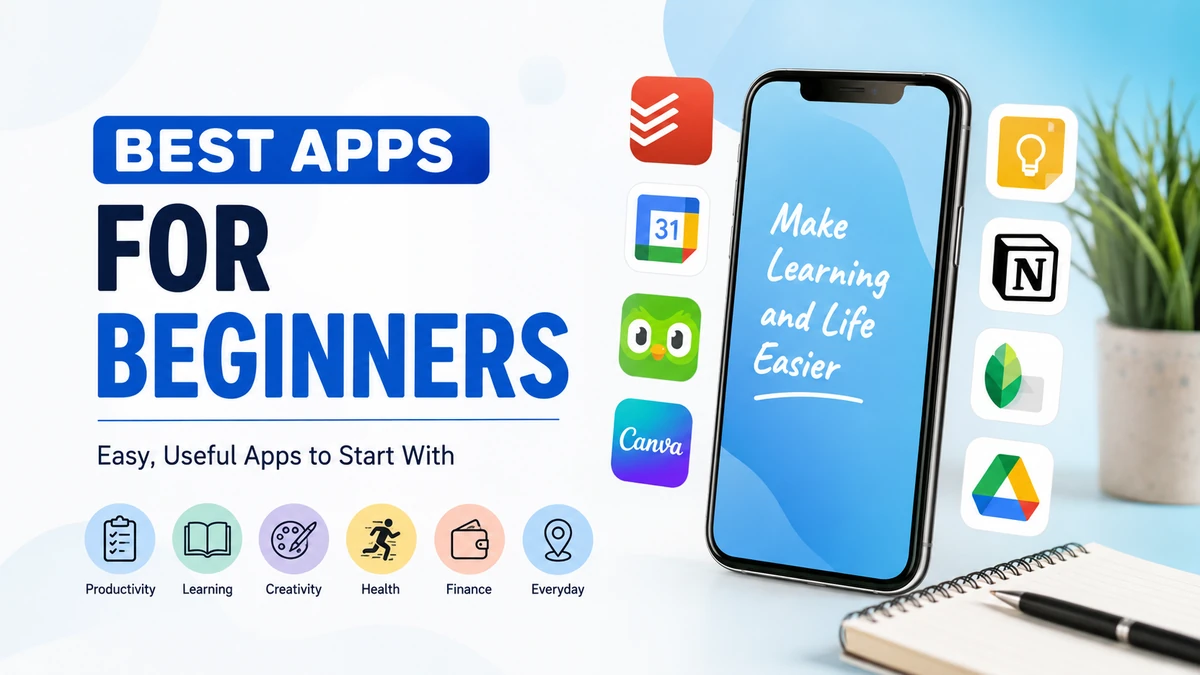
The best apps for beginners combine a simple interface, clear onboarding, useful free features, and enough depth to remain valuable as your skills improve. Good starting choices include Todoist for tasks, Google Calendar for scheduling, Google Keep for quick notes, Duolingo for language learning, Canva for design, Khan Academy for education, and Strava for basic activity tracking.
The right choice depends less on which app has the longest feature list and more on what you want to accomplish.
This guide covers beginner-friendly apps across productivity, learning, creativity, communication, personal finance, fitness, and everyday organization. It also explains what makes an app genuinely easy to learn and how to avoid installing far more tools than you need.
What Makes the Best Apps for Beginners Different?
Beginner-friendly software should reduce friction rather than introduce another complicated system to manage.
A useful app for a new user generally has five qualities:
- A clean and understandable interface
- Simple onboarding or guided setup
- Useful features without extensive configuration
- A practical free version or trial
- Room to grow as the user becomes more experienced
Current beginner-app guides consistently emphasize simplicity, intuitive navigation, useful free tiers, and avoiding unnecessary complexity. Productivity guides also commonly recommend starting with a small number of focused tools rather than building an elaborate app stack immediately.
There is another factor that receives less attention: time to first useful result.
If you install a task manager, you should be able to create your first task almost immediately. A note-taking app should let you start writing before you understand its advanced organization system. A language app should put you into an actual lesson instead of making you configure twenty preferences.
That principle is useful when evaluating almost any beginner app.
Quick comparison of beginner-friendly apps
| App | Best for | Beginner learning curve | Free option |
|---|---|---|---|
| Todoist | Tasks and to-do lists | Easy | Yes |
| Google Calendar | Scheduling | Easy | Yes |
| Google Keep | Quick notes | Very easy | Yes |
| Notion | Notes and organization | Moderate | Yes |
| Forest | Focus sessions | Very easy | Varies by platform |
| Clockify | Time tracking | Easy | Yes |
| Duolingo | Language learning | Very easy | Yes |
| Khan Academy | Academic learning | Easy | Yes |
| Sololearn | Learning programming | Easy | Yes |
| Canva | Graphic design | Easy | Yes |
| Snapseed | Photo editing | Easy | Yes |
| Strava | Activity tracking | Easy | Yes |
| MyFitnessPal | Food and nutrition tracking | Easy | Yes |
| Google Maps | Navigation | Very easy | Yes |
| Google Drive | File storage | Easy | Yes |
Features and pricing can change, so checking the current app listing before choosing a paid plan is sensible.
Best Apps for Beginners for Productivity
Productivity software is one of the easiest categories to overcomplicate.
You do not need a sophisticated workspace, automated calendar, project-management dashboard, knowledge database, habit tracker, and five different note-taking tools to become organized.
Start by solving one problem.
Todoist — Best for simple task management
Todoist is an approachable starting point for anyone moving from handwritten lists or trying a task manager for the first time.
Its basic workflow is straightforward: add something you need to do, give it a date if necessary, and mark it complete when finished.
As your needs increase, tasks can be organized into projects and supplemented with priorities, recurring schedules, and other organizational features.
The key for a beginner is not to configure everything immediately.
Start with one list containing today’s responsibilities. Once using the app becomes habitual, introduce projects or recurring tasks.
Best for: students, professionals, freelancers, and everyday personal tasks.
Possible drawback: advanced organization can become another productivity project if you spend too much time configuring your system.
Google Calendar — Best for managing your schedule
Google Calendar works particularly well for beginners because most people already understand the underlying concept: a calendar divided into days and times.
Use it for appointments, classes, meetings, deadlines, birthdays, and recurring commitments.
A practical beginner system is to separate two things:
Tasks represent things you need to accomplish.
Calendar events represent things that happen at a particular time.
Trying to put every tiny task on a calendar can quickly create clutter.
Google Keep — Best for quick notes
Google Keep is useful when you need somewhere to capture an idea without creating an elaborate note-management system.
You can use it for:
- Shopping lists
- Reminders
- Short checklists
- Ideas
- URLs
- Voice notes
- Temporary information
Its simplicity is precisely why it works well for beginners.
Notion — Best for beginners who want room to grow
Notion combines notes, documents, databases, planning, and collaborative workspace features.
That versatility is both its strength and its weakness.
A new user can begin with an ordinary page and a simple checklist. More advanced databases, templates, dashboards, relations, and workflows can come later.
Current productivity comparisons regularly include Notion among leading organization tools, while also positioning simpler task managers such as Todoist as easier starting points for focused task management.
Quick Takeaway: Beginners usually need one task app, one calendar, and perhaps one place for notes. Adding more software rarely fixes an organizational problem by itself.
Best Apps for Beginners Who Want to Learn Something
Mobile learning works particularly well when an app makes starting a lesson almost effortless.
Short sessions also remove one of the most common excuses for postponing learning: not having enough time.
Duolingo — Best for starting a language
Duolingo is one of the most recognizable language-learning apps and remains a particularly accessible choice for new learners.
Its short exercises, progression system, streaks, and game-like elements make daily practice approachable. Current language-app comparisons continue to identify it as a strong beginner option, especially for building a regular learning habit.
Duolingo is most useful when treated as a starting tool rather than a complete replacement for real language use.
A better progression looks like this:
- Learn basic vocabulary and sentence patterns.
- Build a consistent daily practice habit.
- Add listening material.
- Read increasingly natural content.
- Practice speaking with other people.
Apps can build the foundation, but conversation and exposure to authentic language eventually become essential for fluency.
Khan Academy — Best for academic learning
Khan Academy is useful for learners who want structured educational material rather than entertainment-style microlearning.
It covers subjects including mathematics, science, economics, computing, and other academic areas.
For beginners, structured progression matters. Jumping randomly between educational videos can feel productive without creating much lasting knowledge.
Choose a subject, identify your starting level, and work through related material sequentially.
Sololearn — Best for beginner coding practice
Sololearn introduces programming through short lessons and hands-on coding activities.
That practical component matters.
Programming is not something most people learn effectively by reading definitions alone. You need to write code, make mistakes, see what happens, and gradually understand why it happened.
A recent comparison of free learning apps highlighted Sololearn specifically for learning coding through actual code-writing practice.
Beginners interested in Python, JavaScript, HTML, CSS, or other programming fundamentals can use an app to establish basic concepts before progressing to larger projects.
Memrise — Best for vocabulary practice
Memrise focuses heavily on language vocabulary, listening, and repeated exposure.
It can be particularly helpful when you already have a primary language course but need more practice remembering words and understanding natural pronunciation.
Spaced repetition—the idea of reviewing information at increasingly appropriate intervals—is especially useful for vocabulary retention.
Kinnu — Best for curiosity-driven learning
Kinnu takes a broader microlearning approach, offering structured learning across different subjects.
Instead of committing immediately to a long formal course, beginners can explore subjects in smaller sessions. Recent testing by WhistleOut highlighted Kinnu as a strong free option for structured topic exploration.
This format suits people who enjoy learning broadly but struggle to finish conventional courses.
Best Apps for Beginners for Focus and Time Management
Installing productivity software will not automatically improve concentration.
For some beginners, the most effective app is one that simply helps them stop touching their phone.
Forest — Best for reducing phone distraction
Forest turns focused work into a simple visual exercise.
You start a focus session and grow a virtual tree while staying focused. The concept deliberately avoids the complexity of traditional project-management software.
That makes Forest useful for:
- Studying
- Reading
- Writing
- Exam preparation
- Deep work
- Reducing habitual phone checking
Begin with a manageable session—perhaps 20 or 25 minutes—rather than attempting hours of uninterrupted concentration.
Clockify — Best for understanding where your time goes
Clockify is a time-tracking tool that can show how much time you actually spend on different activities.
This is especially useful for freelancers and people beginning remote work.
The goal initially should not be to measure every minute of your life.
Track only major categories such as:
- Client work
- Study
- Administration
- Meetings
- Personal projects
After a week, review the totals.
The difference between how people think they spend their time and how they actually spend it can be surprisingly large.
Best Apps for Beginners for Creativity
Creative software once required learning complicated desktop interfaces before producing anything worthwhile. Beginner-focused mobile and web tools have dramatically lowered that barrier.
Canva — Best for beginner graphic design
Canva is one of the easiest places to start creating visual content.
Templates make it possible to create:
- Presentations
- Social media graphics
- Posters
- Invitations
- Resumes
- Thumbnails
- Simple videos
The biggest beginner mistake is editing every part of a template.
Instead, choose a design close to the desired result, replace the text and images, make small adjustments, and stop.
Learning basic principles such as alignment, spacing, contrast, typography, and visual hierarchy will eventually improve your work more than continually adding effects.
Snapseed — Best for learning photo editing
Snapseed provides accessible photo-editing controls without requiring a professional desktop workflow.
A beginner should first learn what a few fundamental adjustments actually do:
Brightness affects overall lightness.
Contrast changes separation between darker and lighter areas.
Highlights mainly affect bright areas.
Shadows affect darker areas.
Saturation controls color intensity.
Understanding these fundamentals makes moving to more advanced photo editors much easier later.
Best Apps for Beginners for Fitness and Healthy Habits
Fitness apps work best when they support an achievable routine rather than turning health into an endless stream of numbers.
Strava — Best for tracking walks, runs, and rides
Strava can track activities such as running, walking, and cycling while recording useful performance information.
Beginners should pay attention to consistency before speed.
If you have only recently started exercising, comparing every activity against experienced athletes can be counterproductive. Establish a sustainable routine and monitor your own progress over time.
MyFitnessPal — Best for learning about food tracking
MyFitnessPal helps users log food and understand calories and nutritional information.
The educational value can be more useful than chasing perfect numbers.
Tracking for a limited period can help someone understand portion sizes, recurring eating patterns, and which foods contribute significantly to daily intake.
Nutrition databases and user-entered food information are not always perfectly accurate, however, so individual entries should not automatically be treated as laboratory measurements.
For medical nutrition decisions, an app should never replace advice from an appropriately qualified healthcare professional.
Best Apps for Beginners for Money Management
Financial apps require more caution than ordinary productivity tools because security, privacy, fees, and local availability matter.
Your bank’s official mobile app — Best place to start
For someone new to digital money management, the official application provided by their bank is usually the logical first tool.
Learn how to:
- Review transactions
- Check balances
- Download statements
- Set transaction notifications
- Pay bills
- Manage security settings
Enable available security protections such as biometric authentication or multi-factor authentication.
Never install a financial application through a random download site or link sent in an unsolicited message.
A simple budgeting app or spreadsheet — Best for learning budgeting
Beginners do not necessarily need a complex finance platform.
The basic budgeting equation is simple:
Income − essential expenses − discretionary spending − savings = remaining balance
Categorizing a month of transactions can reveal more than installing an elaborate financial dashboard.
Before connecting a third-party budgeting application to financial accounts, investigate what information it collects, how connections are secured, whether it charges fees, and whether the service operates reliably in your country.
Best Everyday Apps for Beginners
Some of the most useful beginner apps are not specialized at all. They solve ordinary problems repeatedly.
Google Maps — Best for navigation
Google Maps helps with directions, location discovery, travel planning, and exploring unfamiliar areas.
Beginners should learn several features beyond typing an address:
- Walking directions
- Public transport options where supported
- Saved places
- Route alternatives
- Offline maps where available
- Location sharing controls
Remember that business information, road conditions, and operating hours can change, so important details should be verified when necessary.
Google Drive — Best for basic cloud file storage
Google Drive provides an accessible introduction to cloud storage and file sharing.
The basic concept is simple: instead of keeping the only copy of an important file on one device, cloud storage can make it accessible through your account across compatible devices.
Beginners should learn three things early:
- How folders work.
- How sharing permissions work.
- The difference between private, restricted, and broadly shared files.
Accidentally granting public access to a document is an avoidable privacy mistake.
Best Apps for Beginners: Which Ones Should You Install First?
You do not need every app in this guide.
A beginner setup can be much smaller.
| If your goal is… | Start with… |
|---|---|
| Organize daily tasks | Todoist |
| Manage appointments | Google Calendar |
| Save quick ideas | Google Keep |
| Build a personal workspace | Notion |
| Improve concentration | Forest |
| Track working hours | Clockify |
| Learn a language | Duolingo |
| Study academic subjects | Khan Academy |
| Learn programming | Sololearn |
| Create graphics | Canva |
| Edit photos | Snapseed |
| Track exercise | Strava |
| Understand food intake | MyFitnessPal |
| Navigate unfamiliar places | Google Maps |
| Store and share files | Google Drive |
For most people, three or four carefully chosen apps are more useful than twenty applications competing for attention.
How to Choose Beginner-Friendly Apps
When two apps appear to do roughly the same thing, use a simple evaluation process rather than relying on star ratings alone.
1. Define the exact problem
Do not start with:
“I need a productivity app.”
Start with:
“I keep forgetting deadlines.”
That immediately narrows the solution toward tasks and calendars rather than complex note-taking or project-management software.
2. Check whether the free version solves the problem
A free plan does not need every advanced feature.
It needs enough functionality to determine whether the app genuinely improves your routine.
Use the free version before subscribing whenever practical.
3. Test the first ten minutes
After installation, ask:
- Can I understand the main screen?
- Can I complete the app’s primary action?
- Is the terminology understandable?
- Are important features easy to find?
- Does the app immediately demand unnecessary information?
If basic actions require watching several tutorials, another option may suit a complete beginner better.
4. Check platform compatibility
Some applications work across Android, iOS, Windows, macOS, and the web. Others are limited to particular platforms or offer different functionality on each.
Cross-device synchronization becomes especially valuable when you use a phone and computer regularly.
5. Examine privacy and permissions
A flashlight application should not need your contacts.
A simple note-taking tool generally should not require constant access to your precise location.
Before granting permissions, ask whether the requested information is necessary for the feature you are trying to use.
Also consider:
- What data the app collects
- Whether an account is required
- Whether information is synchronized to the cloud
- Whether files are shared by default
- Whether you can delete your account and data
6. Understand the subscription before paying
“Free to download” does not necessarily mean free to use indefinitely.
Look for:
- Monthly versus annual billing
- Automatic renewal
- Trial expiration dates
- Feature restrictions
- Cancellation procedures
- Family or student plans where relevant
Pricing can change over time and may vary by country or platform.
7. Give the app enough time
Switching applications every few days prevents you from developing a stable workflow.
Unless an app clearly fails your requirements, use it consistently for a week or two before deciding whether it works.
Free Apps vs. Paid Apps: What Should Beginners Choose?
Start free whenever the free version genuinely covers your needs.
Paying makes sense when a premium feature solves a recurring problem rather than merely looking interesting.
For example, a paid plan may become worthwhile when you specifically need:
- More cloud storage
- Offline access
- Advanced collaboration
- Additional learning material
- Automation
- Enhanced reporting
- Professional export options
A subscription is harder to justify when you use an application twice a month and barely touch its advanced features.
The question is not “Is the premium plan good?”
Ask: “Will I regularly use the feature I am paying for?”
If the answer is uncertain, stay with the free version.
Common Mistakes Beginners Make With Apps
The biggest mistake is downloading too many tools at once.
You install a task manager, habit tracker, calendar, journal, focus timer, note-taking app, second note-taking app, and project manager. Soon, managing the system requires more effort than doing the work.
Avoid several common traps.
Using multiple apps for the same job
Pick one primary tool for each purpose.
You probably do not need three to-do list apps.
Customizing before using
Templates, themes, widgets, dashboards, tags, folders, and automation can wait.
First learn the basic workflow.
Chasing streaks instead of results
Streaks can help build consistency, especially in learning and fitness apps, but the streak is not the objective.
Learning, exercising, concentrating, or completing tasks is.
Ignoring notifications
Allowing every application to send alerts can create constant interruption.
Keep notifications for genuinely time-sensitive information and disable low-value promotional alerts.
Paying too early
A discounted annual subscription is still wasted money if you stop using the app next week.
Test before committing.
Ignoring security
Use unique passwords, enable multi-factor authentication when available, review connected accounts, and download software from legitimate app stores or official sources.
These precautions become especially important for cloud storage, email, financial services, and applications containing personal information.
Can Beginners Learn Entirely Through Apps?
For introductory skills, apps can be extremely effective.
They are particularly good at:
- Building daily habits
- Teaching fundamentals
- Delivering short lessons
- Providing repeated practice
- Tracking progress
- Giving immediate feedback
But applications have limitations.
Language learners eventually need natural conversations and real-world listening. Programmers need to build actual projects. Designers need to create work without depending entirely on templates. Students need to solve unfamiliar problems rather than simply complete guided exercises.
Recent learning-app comparisons make a similar distinction: microlearning apps can build consistency, while deeper courses and practical experiences become more valuable as the skill develops.
Think of a beginner app as a launchpad, not necessarily the entire journey.
How Many Apps Does a Beginner Actually Need?
Usually fewer than expected.
A practical personal setup might consist of:
- One calendar for appointments and scheduled commitments.
- One task manager for things you need to complete.
- One notes app for information you want to keep.
- One learning or skill app related to your current goal.
Everything else should earn its place.
Before downloading another application, ask:
What will this app allow me to do that my existing tools cannot?
If you cannot answer clearly, you probably do not need it.
Final Thoughts on the Best Apps for Beginners
The best apps for beginners are not necessarily the applications with the most features. They are the ones that make a useful action easy enough to repeat.
Todoist is a strong starting point for tasks, Google Calendar handles schedules, Google Keep keeps note-taking simple, Duolingo makes language practice approachable, Khan Academy supports structured learning, Sololearn introduces coding through practice, Canva lowers the barrier to design, and Forest provides a simple way to work with fewer distractions.
Choose one problem first. Install one app that addresses it. Learn its basic features and use it consistently before adding something else.
A small collection of apps you understand is far more useful than a phone full of powerful tools you never actually use.
